Showing posts with label programming. Show all posts

Monday, March 3, 2014

TOpenPictureDialog tutorial

For this tutorial we need a button(standard tab), an image(additional tab) and a openpicturedialog(Dialogs).


double click button1 and write the following

procedure TForm1.Button1Click(Sender: TObject);
begin
  if openpicturedialog1.Execute then
     image1.Picture.LoadFromFile(openpicturedialog1.FileName);

end;


if the openpicturedialog executed the picture we just select opens in image1.

We execute our program we click the button and we open a picture.

Thats all for now..

TFontDialog tutorial

For this tutorial we need a memo from standard tab, a button from standard tab and a tfontdialog from Dialogs tab


double click the button and write the following code

procedure TForm1.Button1Click(Sender: TObject);
begin
  if fontdialog1.Execute then
   memo1.Font:=fontdialog1.Font;
end;


now execute the program and click font options button. The following dialog appears


change the options and press ok.


thats all.


TColorDialog example

For this tutorial add a button from standard tab and a TColorDialog from Dialogs tab  in the form.
Change the caption of button1 to "form1 color"

double click the button and write the following code

Procedure TForm1.Button1Click( Sender: TObject );
 begin
   if colordialog1.Execute then
    form1.Color:=(colordialog1.Color);
 end;


This code executes the colordialog1 if we run the program and press the button.


 If we select for example blue color form1 became blue.

Thats all..


Load Dialog


 1.For this tutorial add a memo, a button and a TOpenDialog in the form.

2.Change the caption of  button1 to "load".
3.Double click on load button and write onclick event: 

procedure TForm1.Button1Click(Sender: TObject);
var
  filename: string;
begin


if OpenDialog1.Execute then
   begin
        filename := OpenDialog1.Filename;
        memo1.Lines.LoadFromFile(opendialog1.FileName);
   end;
end;  


the selected file opens in memo1


4.The Execute method displays the file open dialog.  It returns true when user has selected a file, false when user has aborted.

The Filename property returns the full filename. 


5.Look at the object inspector for further options

we can also set the default extension for our file and

add a filter which allow only .txt types to be saved.


so we add the follow lines in form create event 


openDialog1.DefaultExt := 'txt';
openDialog1.Filter := 'Text file|*.txt';


Thats all.

Wednesday, April 24, 2013

Main Menu

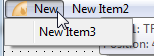
1. Place the TMainMenu widget on your form


2.Double click on the widget.

3.Click on NewItem1.

4.The object inspector will display the properties of the MenuItem1.]


5. Change the caption property to "New caption" or anything you like.

6.Right click on it and select "insert new item (after)" to create a second item after our first item.
and right click again and select "create submenu".

7.Select one of the button that you create and double click on it. Write the code you want for example:

8.You can add a shortcut for your menu, by changing the "shortcut" property for a specific button in the object inspector

9.If we want to add an image in our menu we add an image list in our form and we change "images" property of mainmenu1 to "imagelist1".

10.Then we double click on imagelist1 and imagelist editor show up.

11.Click on add and select your image..

12.Press ok and close imagelist editor. Then select your menu item and change the image index property.

13.And voila!!